
Configuration & Settings
Learn how to customize PullPro for your team's needs. Find guidance on configuring routing settings for pull requests, setting working hours to ensure reminders are sent only during appropriate times, and more.
Accessing Channel Settings
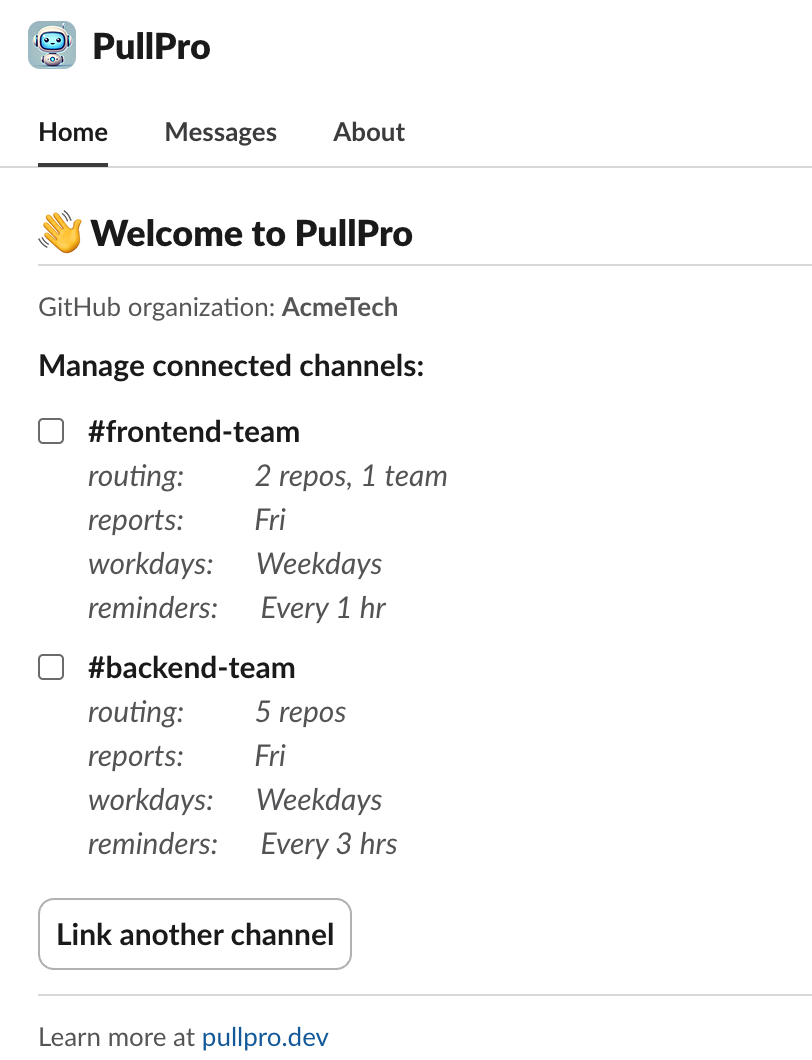
To configure settings for specific channels, visit the PullPro app home tab in Slack. The home tab displays a summary of all your configured channels. To edit one or more channels, select the checkboxes next to the channels you want to modify. Settings will be applied to all selected channels.
Routing Settings
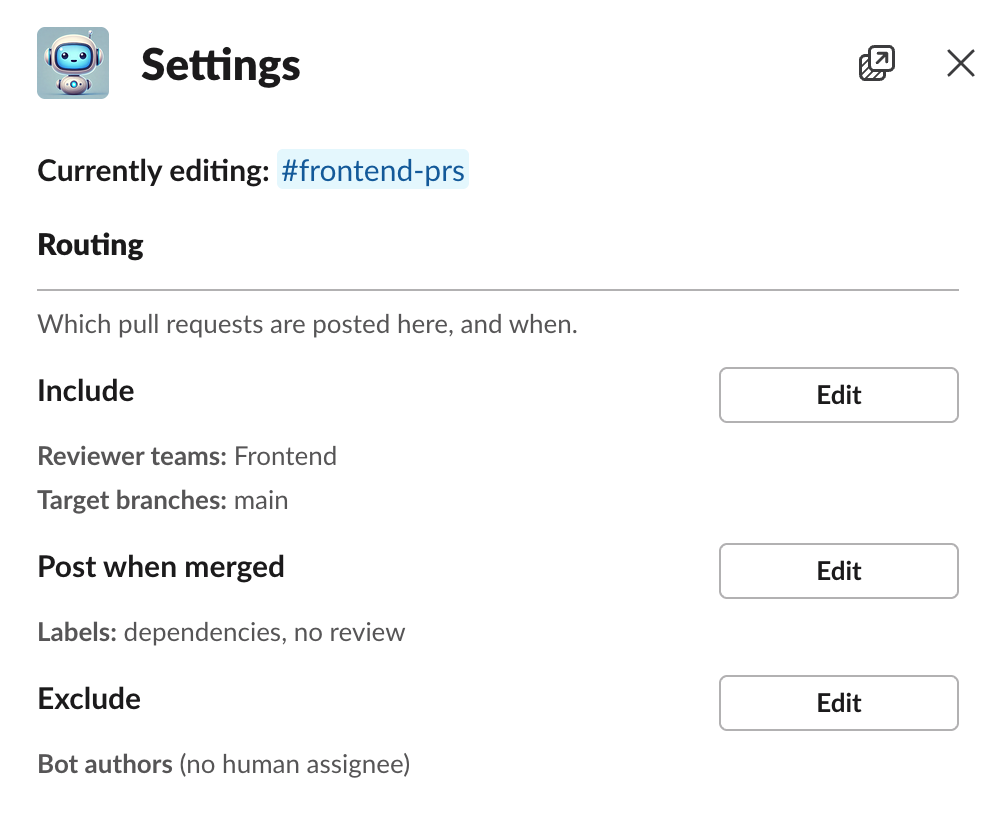
Routing controls which Slack channels your GitHub PRs are automatically posted to. In a channel's settings, the Routing area has three parts, each with a summary of what's configured and a button to change it:
- Include decides which PRs come to the channel.
- Post when merged holds some of those back until they merge.
- Exclude skips PRs that would otherwise be included.
Include
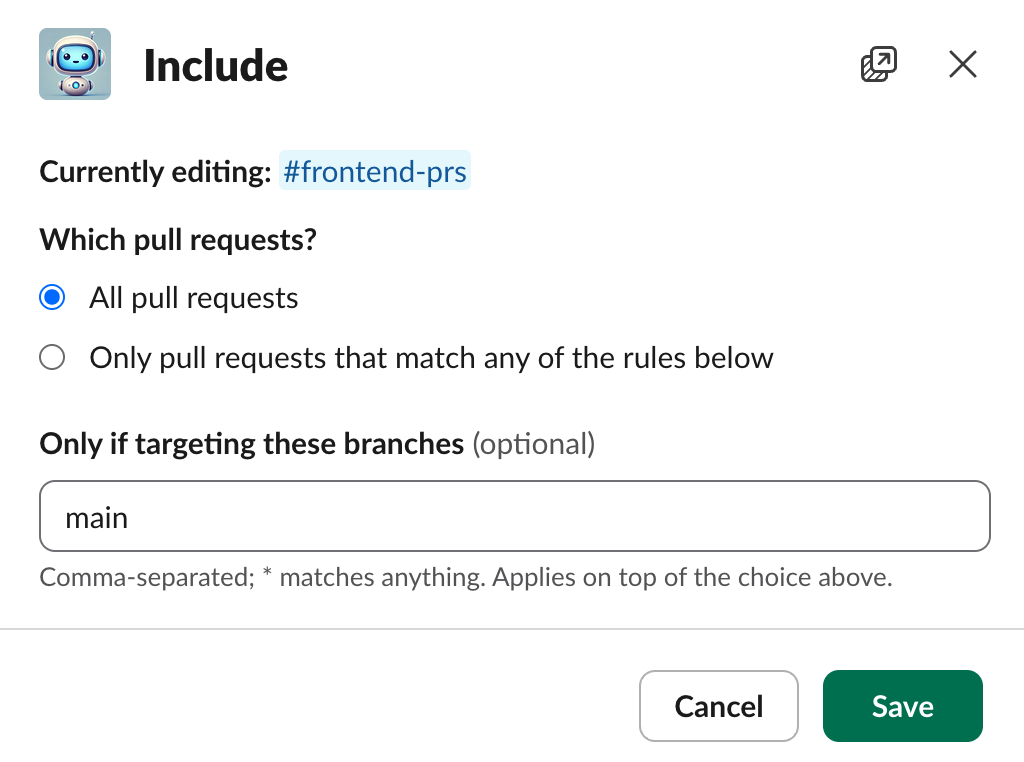
Choose one of:
- All pull requests in your GitHub organization.
- Only pull requests that match any of these rules:
- Reviewer team: a selected team is requested as a reviewer
- Author's team: the PR author is a member of a selected team
- Repository: the PR belongs to a selected repository
- Label: the PR has a selected label
If any rule matches, the PR is posted, so a single PR can land in several channels.
Labels match by name in any repository, ignoring case: choosing security covers every repo that has a security label, including repos created later. Start typing to pick from labels your organization already uses, or enter a name that hasn't been used yet.
Optionally, add target branches (comma-separated, * as a wildcard, e.g. main, release/*). When set, a PR must also target one of these branches. This applies to "All pull requests" too.
Post when merged
Hold back PRs that have any of the selected labels: they aren't posted to this channel for review, and they're posted once they merge so the team still sees them. Use it for PRs that need no review, such as Dependabot's dependencies. Labels match the same way as include rules. See Post when merged for details.
Exclude
Skip PRs that:
- Have any of the selected labels, for example Dependabot's
dependencieslabel. Like include rules, these match label names in any repository. - Are opened by a bot with no human assignee. A bot PR assigned to a person is treated as that person's PR everywhere in PullPro, so it isn't excluded and routes by their team.
Exclusions win over Include and Post when merged rules. If you rename a label on GitHub, update any rules that use it, since rules keep the name you chose.
How the rules combine
For each channel, strongest first:
- Exclude — never posted in this channel, whatever else matches.
- Post when merged — of the PRs Include brings here, those with these labels are posted only once merged, without asking for review. It never brings in a PR Include doesn't.
- Include — otherwise, posted here for review.
For example, a channel that includes All pull requests, posts dependencies when merged and excludes wip posts a Dependabot PR once it merges, never posts a wip PR, and posts everything else for review.
Dynamic Updates
When team reviewers are added or removed from a PR on GitHub, PullPro automatically updates the already posted PR message:
- Adding team reviewers posts the PR to additional channels whose reviewer rules match
- Removing team reviewers removes the PR from channels where it was posted because of those reviewers
Adding a label posts the PR to any channel whose label rules now match, unless it's excluded there or the channel holds it until merge.
Rules are checked when a PR is posted, so labelling a PR that's already posted doesn't take it down: adding an Exclude label leaves the message where it is, and adding a Post when merged label leaves it too but stops that channel's reminders. Removing a Post when merged label posts the PR in the channels that label was holding, the same way a newly opened PR is posted.
Examples of Routing
- Reviewer-based: If a team called Frontend is assigned as a reviewer for a PR, that PR will be automatically posted in the #frontend-reviews channel.
- Repository-based: For a repository dedicated to DevOps, all PRs from that repo might automatically go to #devops-reviews, ensuring relevant team members see them.
- Label-based: PRs with a "security" label could be routed to #security-reviews regardless of author or repository.
- Everything except dependencies: Include All pull requests, exclude the
dependencieslabel and bot authors, and targetmain, so #reviews gets every human PR headed formain. - Multi-channel: A PR authored by someone on the Frontend team with a "security" label would be posted to both #frontend-reviews and #security-reviews.
Working Hours
Configuring working hours allows you to control when reminders for PRs are sent. This ensures that PR reminders are only sent during active work hours, avoiding unnecessary notifications outside of working time.
Setting Working Hours
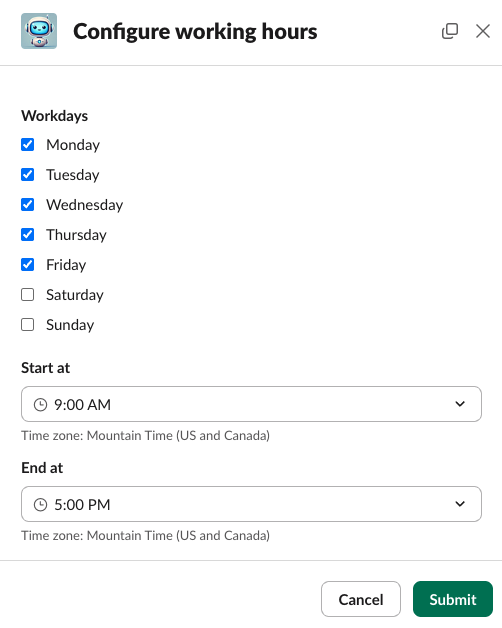
- Go to the Slack home tab for PullPro and open the channel settings to configure your work schedule.
- Select which days of the week are regular working days.
- Define the start and end times of your working days.