

Using the App
This section covers how to use PullPro to coordinate pull request reviews directly from Slack. Learn how to post, claim, and manage PRs.
Posting Pull Requests
There are two ways to post a pull request in Slack:
- (Recommended) Automatically, when a PR is marked as ready for review in GitHub.
- Manually, by using the
/pr [description]command in the desired Slack channel.
Automatically
In order for PRs to be posted automatically ensure you have installed the GitHub app and configured your routing settings.
- Once a PR is marked as ready for review in GitHub, it is automatically posted in the desired Slack channel based on your team's routing settings.
- Important: By default, PullPro waits for all CI checks to pass before posting a PR to Slack. However, if checks are failing, the PR author will receive a direct message with an option to post the PR immediately if needed.
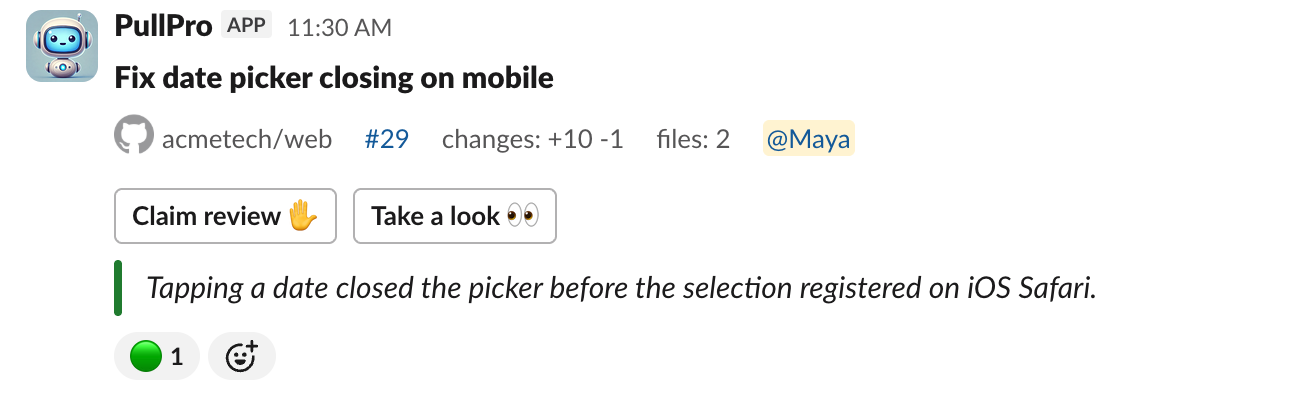
- The PR message includes key details, such as the PR title and its author, who is @-mentioned in Slack once they have linked their GitHub account.
- Each PR message will have options for team members to claim or simply view it.
- GitHub status checks are synchronized to the Slack post using emoji indicators:
- 🟢 Green circle: All checks are passing
- 🟡 Yellow circle: Checks are in progress
- 🔴 Red circle: One or more checks are failing
Bot-Authored PRs
When a bot or GitHub app opens a pull request — a dependency bumper, a release automation, a coding agent — PullPro treats the first human assignee as the author. That person is who the Slack post names, who PullPro messages when something needs the author's attention, and who the pull request counts towards in the per-person metrics. Routing follows them too: an Author's team rule matches the assignee's team. They are also excluded from being asked to review it.
A bot-authored pull request with nobody assigned is still posted and still counts in your team totals, but there is nobody to attribute it to, so it is left out of the per-person breakdowns.
Claiming & Reviewing PRs
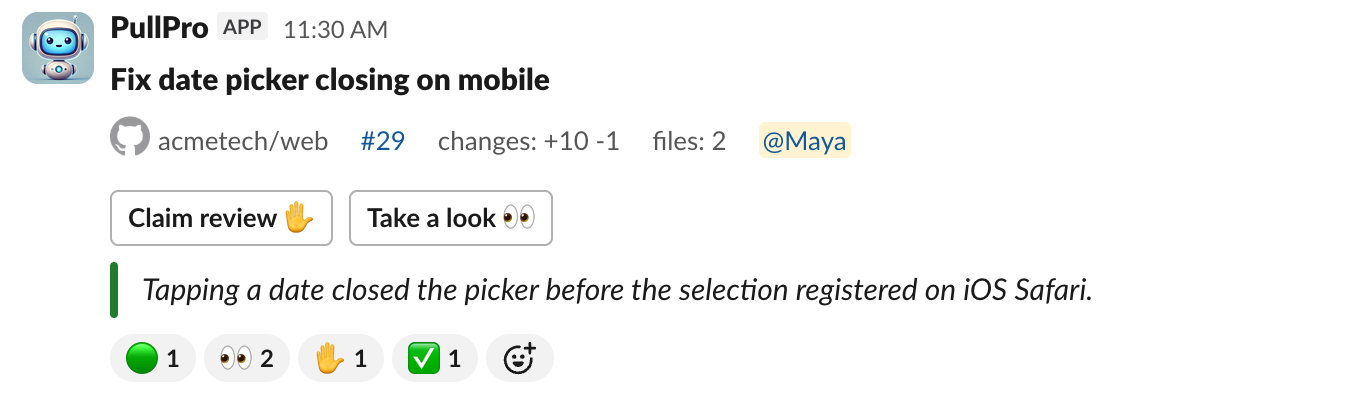
- Click "Claim review" (✋raised hand emoji) to assign yourself as the reviewer for a PR. This helps keep the team informed of who is responsible for the review.
- The app will react, on your behalf, to the Slack message to indicate that the PR has been claimed by you.
- After claiming, proceed to review the PR on GitHub and provide your feedback.
- Approvals on GitHub will also get added as a reaction (✅ white check mark) to the PR message in Slack.
Viewing a PR
- Click "Take a look" (👀 eyes emoji) to open the PR on GitHub without claiming responsibility for the review.
- The app will react, on your behalf, to the Slack message to indicate that you have viewed the PR. This provides transparency to the author and the team on who has seen the PR (even if you don't leave comments or approve it).
Managing PRs in Slack
In addition to posting and claiming PRs, PullPro also helps your team stay accountable to your PR review process directly within Slack.
Reminders for Unclaimed PRs
- If no one claims a PR within a configurable amount of time, the app will send a reminder to the team in the Slack channel where the PR was posted.
- In addition to the public reminder, PullPro will also send a direct message to a chosen user, based on the user's slack status & participation in reviews.
- These reminders ensure that PRs are not forgotten and help keep the review process moving smoothly.
Managing PRs in Different Channels
- Depending on your team's setup, PRs can be routed to different channels based on the repository, author, or other criteria defined in the routing settings.
- This allows teams to manage PRs in the most relevant Slack channels, avoiding clutter and improving organization.
- You can also move PRs between channels if needed using the app's advanced features.